
Changelog #2026-04-27


Fleet-level FBT at a glance
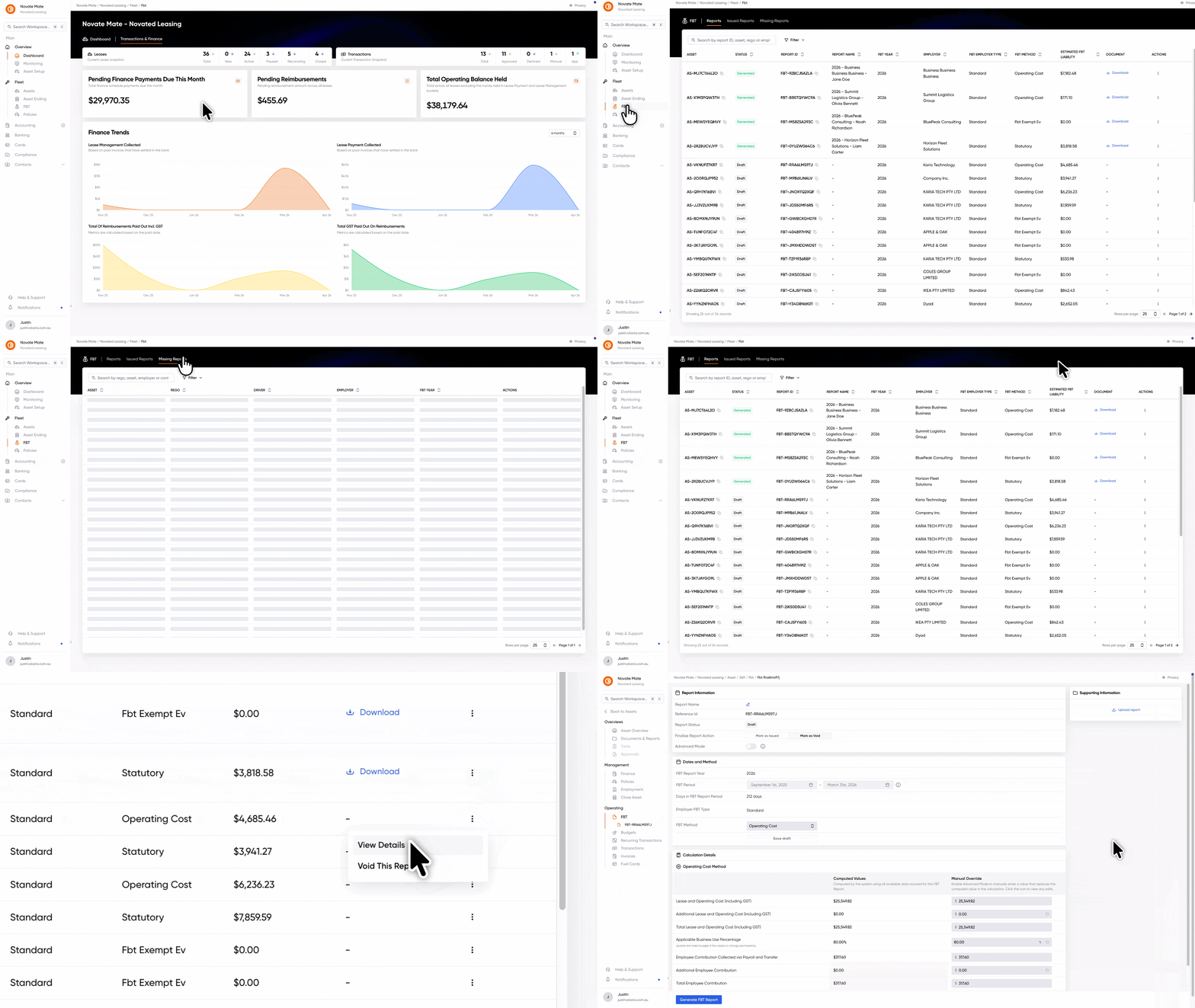
Previously, you had to manually track which FBT Reports were generated and which were still pending. We've simplified that process entirely.
With the new Fleet-level FBT page, you can see exactly which reports are in progress, issued, or missing - all in one place. No more guesswork or juggling spreadsheets.
Flexible recurring dates
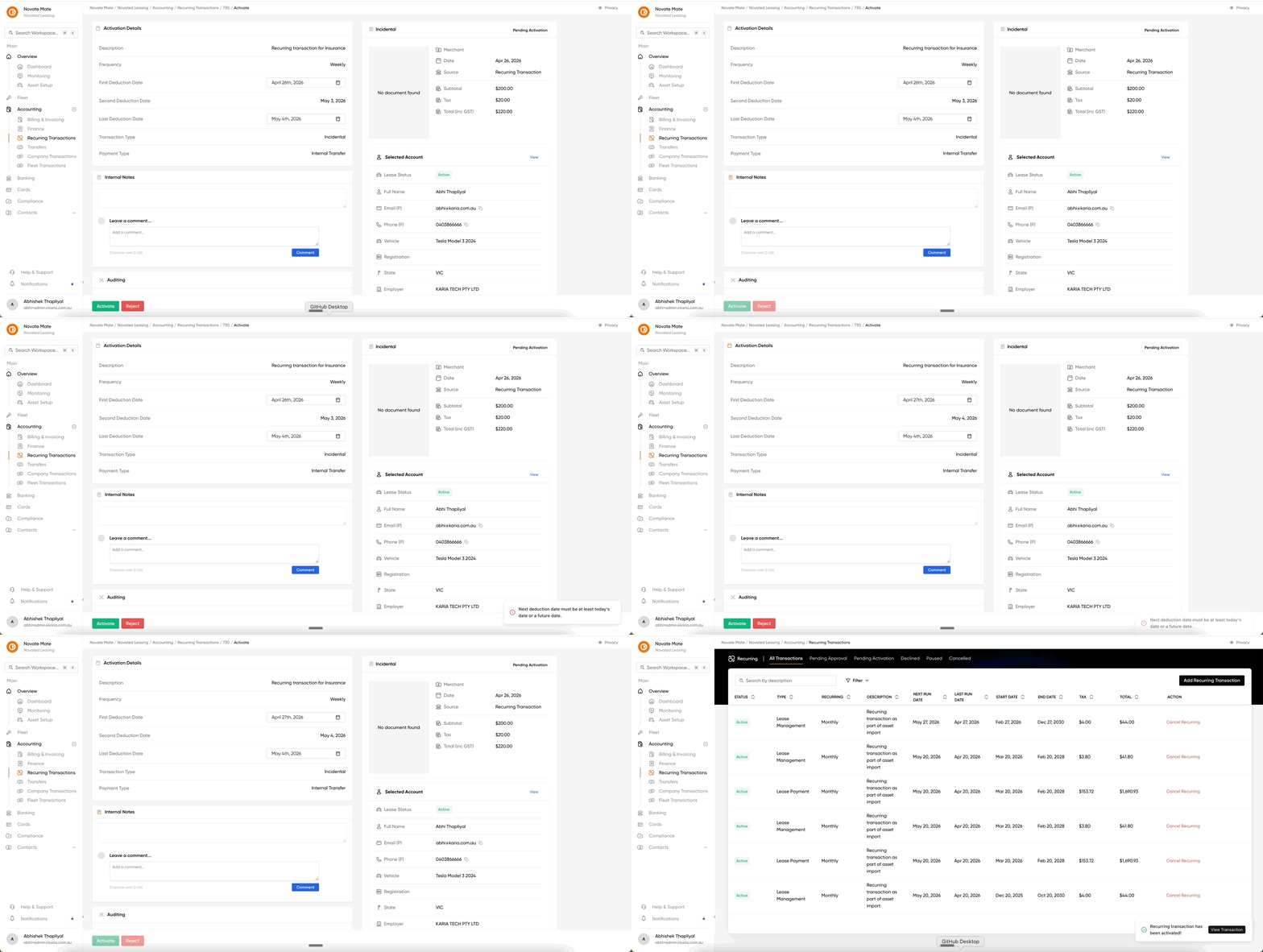
We noticed that if a recurring transaction was activated later than planned, the first deduction could be missed, and there was no easy way to fix it post-approval.
You can now edit the start date for recurring transactions even after they've been approved. This ensures your deductions stay on track, even if the timing shifts.
Workspace settings
Introducing the new Workspace settings page, accessible in the novated workspace in the sidebar. The General workspace settings page covers Billing & Invoicing which hosts the Overdue Invoice form used to control automatic reminder behaviour for the workspace.
Overdue invoice settings (workspace)
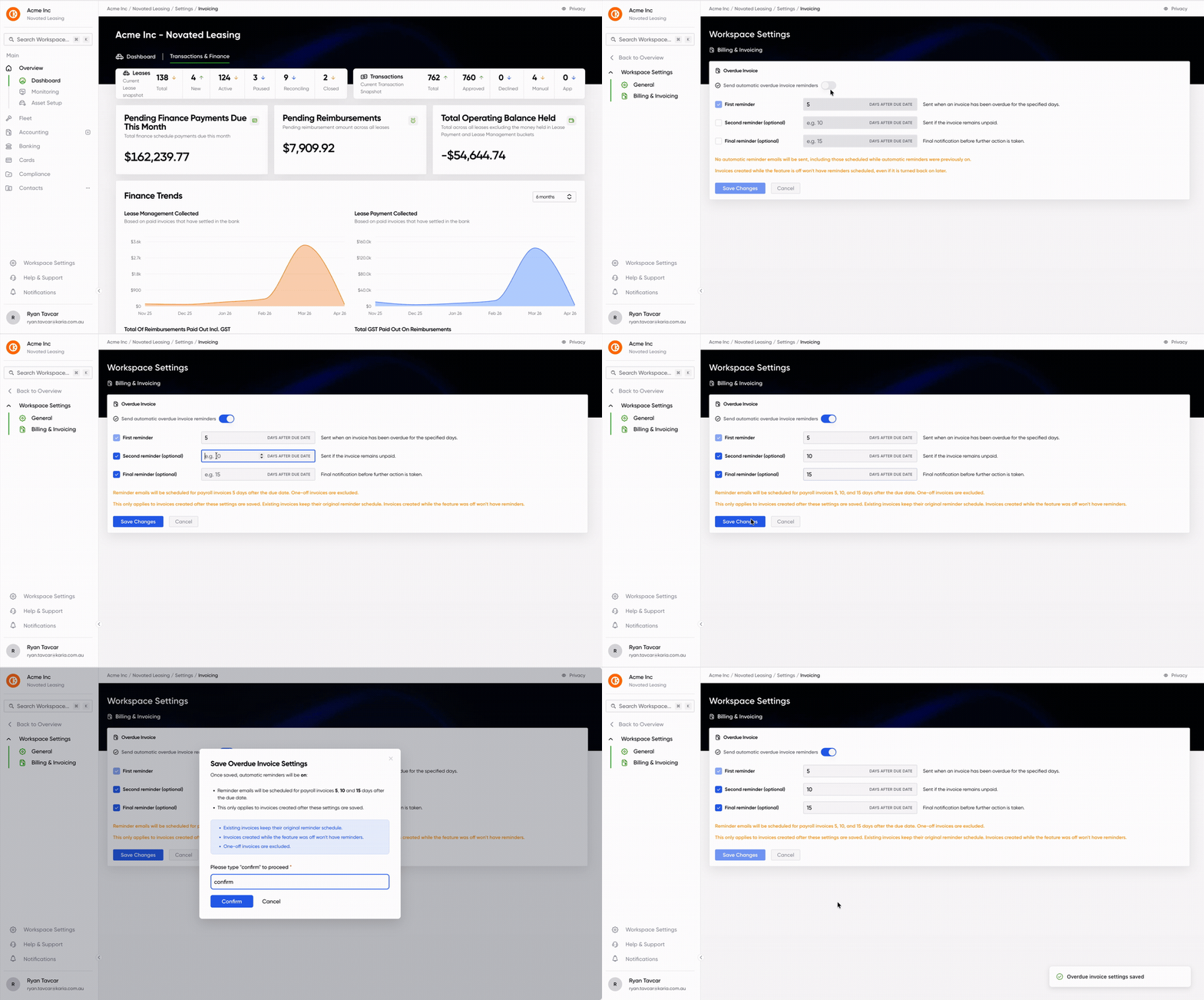
In Workspace Settings → Billing & Invoicing, teams can configure automatic overdue invoice reminders:
-
Master control: Turn automatic overdue reminders on or off for the workspace.
-
Reminder schedule: Configure a first reminder (required when reminders are on), plus optional second and final reminders. Each uses a number of days after the due date.
-
Saving: Changes go through a confirmation step before persisting.
-
Settings apply to payroll invoices and that one-off invoices are excluded for automatic send outs. only invoices created after settings are saved follow the new schedule, while existing invoices keep their original schedule. Invoices created while the feature is off do not get reminders scheduled.
Overdue Reminders Automatic vs Manual
Chasing payments shouldn't be a full-time job. We’ve added two new ways to manage overdue invoices directly from your workspace:
Set it and forget it (Automatic)
Go to your workspace settings (mentioned above) to enable automatic reminders. Once turned on, we’ll handle the follow-up for you by sending emails based on your schedule.
Take control when you need to (Manual)
To send a reminder manually, go to your Invoice Table, open the Actions menu on any overdue invoice, and select Send overdue email.
Fixes and Improvements
- Fixed an issue where importing an asset for an existing driver with a new employer would cause the import to fail